Connect Powersolution CRM with Dinero to synchronize selected customer, product, and offer data between the two systems.
Before you begin
To connect Dinero to Powersolution CRM, you’ll need an API token from your Dinero account. Make sure you have it ready before starting the setup.
Security & Data Protection
Powersolution CRM uses the official Dinero API to securely synchronize permitted data between the CRM and Dinero. Access is granted through Dinero’s authorized authentication process and is limited to the permissions required by the integration.
The integration does not connect directly to the Dinero database or require SQL access. Only supported customer and accounting data is synchronized through the authorized API connection, and access to the Dinero synchronization feature is restricted to authorized users.
Connect Powersolution CRM to Dinero
Start by connecting your Dinero account to Powersolution CRM.
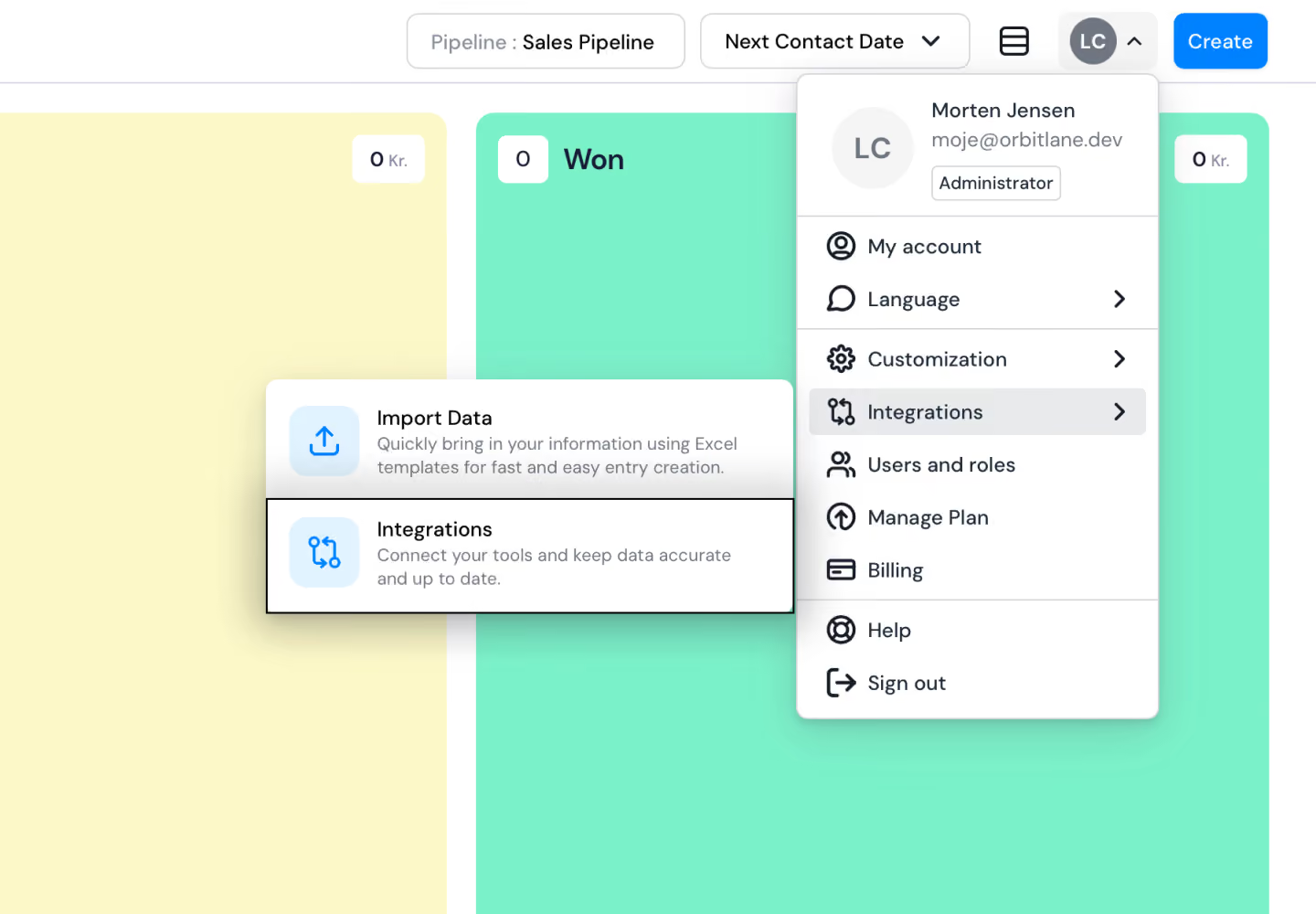
- Log in to Powersolution CRM using your Admin account.
- Open Settings.
- Select
Integrations - Find Dinero in the list of available integrations.
- Click
Connectto begin the connection process.
You will be redirected to Dinero to authorize the connection.
- Log in to your Dinero account.
- Review the permissions requested by Powersolution CRM.
- Click
Acceptto authorize the connection.
The authorization may include permissions for:
- Data access
- Account access
- Offline access
Once authorization is complete, you will return to Powersolution CRM.
Configure the Synchronization
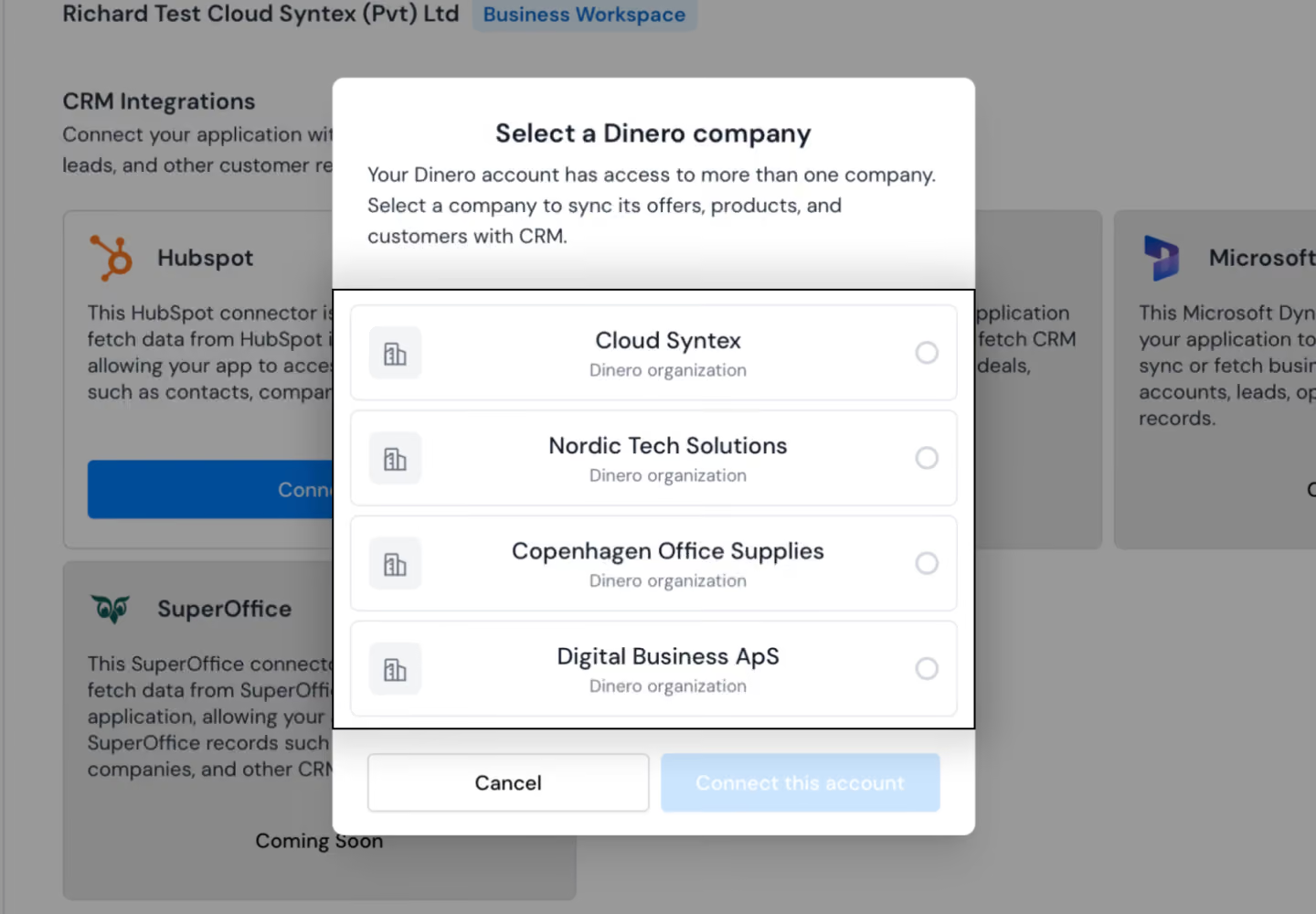
Once Dinero is connected, select the company and data you want to synchronize.
- Select the Dinero company you want to synchronize with Powersolution CRM.
- Make sure you have selected the correct company before continuing.
- Click
Connect this account
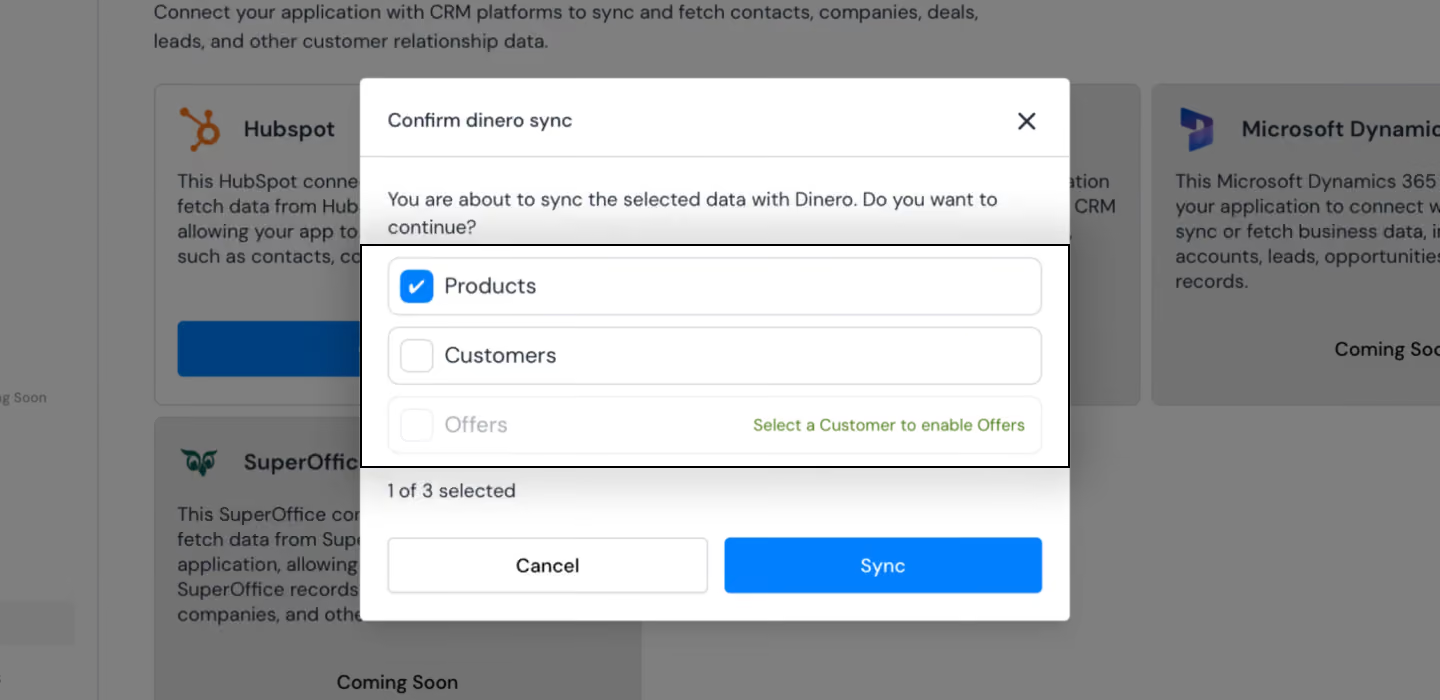
Choose which data you want to synchronize between Powersolution CRM and Dinero.
- Select
Productsto synchronize product information. - Select
Customersto synchronize customer information. - Select
Offersto synchronize offer information - Click
Synchronizeto start the synchronization.
Note: Customers must be selected before Offers can be synchronized.
View Synchronization Results
Once the synchronization is complete, Powersolution CRM displays a summary of the results.
Review the following information for each synchronized data type:
- Created — New records created during the synchronization.
- Updated — Existing records that were updated.
- Skipped — Records that were not synchronized.
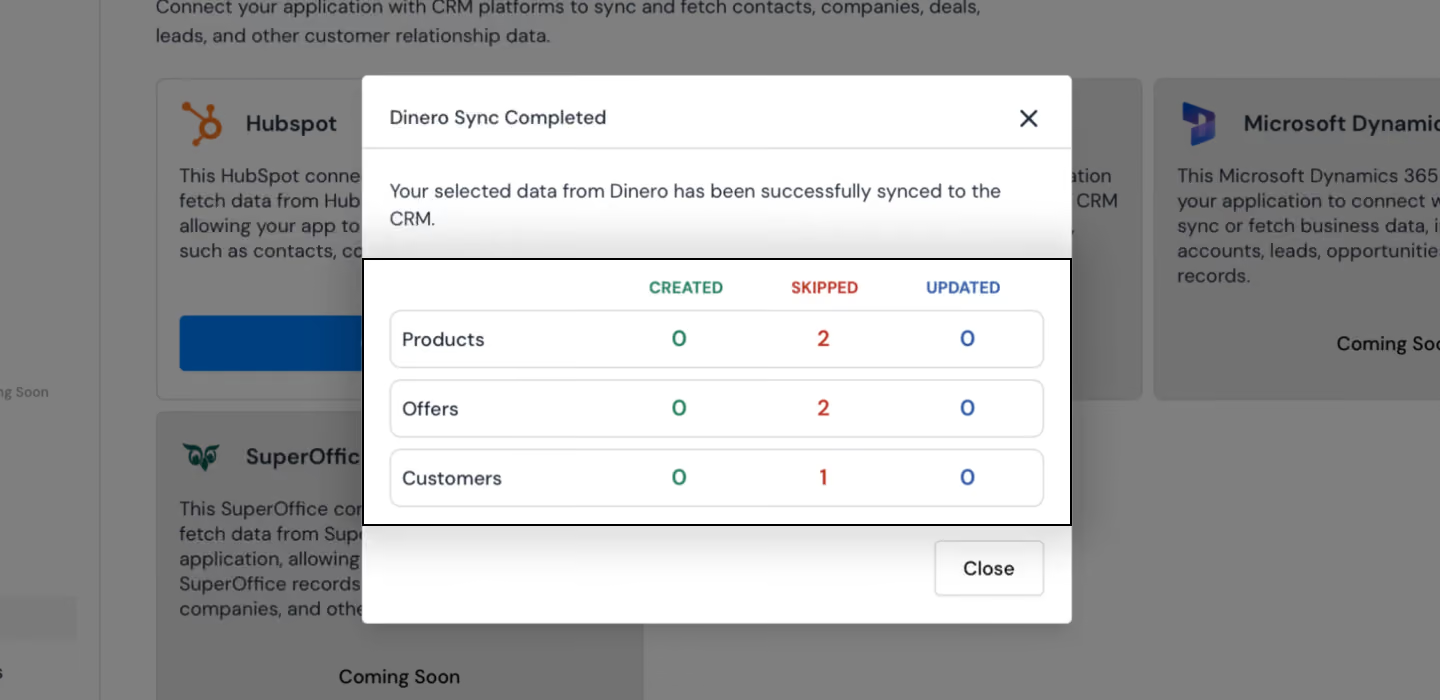
Review the results to confirm that the expected data was synchronized successfully.